
Overview
Anyone on Liquify Ultra—including the free 30-day trial—who wants to connect banks through Lunch Flow (US & Canada, UK & EU, and other supported regions). Liquify never sees your bank password; you authorise the bank in Lunch Flow, then Liquify reads balances and transactions. For Liquify’s free Pluggy (Brazil) path, see the Meu Pluggy guide. Coverage and limits: Bank Sync.
Before you start
- Liquify Ultra (subscription or free 30-day trial)
- A bank supported by Lunch Flow
- About 10 minutes to connect and check Balance, Amounts, and Date
- Lunch Flow limits in Liquify: up to 10 banks in the US & Canada, and up to 5 in other regions
Lunch Flow links
lunchflow.app
Open Connections, select your account, then use Balance, Amounts, and Date. Changes apply the next time Liquify syncs.
Bank coverage
See which banks Lunch Flow supports in your region before you connect.
Live chat
Live chat on lunchflow.app if you get stuck on their side.
Brazil on Lunch Flow right now
Lunch Flow can list Brazil, but connecting Brazilian banks there is currently bring-your-own-key on their side. If Lunch Flow asks for Pluggy credentials, follow our Meu Pluggy guide to create keys and an Item ID, then use them in Lunch Flow. Prefer Liquify’s free Pluggy (Brazil) path (Connect bank → Pluggy (Brazil)) instead—it pastes the same kind of credentials into Liquify without Ultra and does not use your Lunch Flow connection slots. Avoid connecting the same bank on both paths; Open Finance refresh limits are shared across apps—see Why might some bank data stop updating in Brazil?.
1. Connect your bank in Liquify
In Liquify open Connect bank, pick Lunch Flow, then Connect. Sign in with your bank in the Lunch Flow portal, add your institution, and authorise the accounts you want to share.
Return to Liquify — the app finishes the connection when you come back. Use Reconnect in Liquify any time you need to authorise again.
2. Open account settings in Lunch Flow
Lunch Flow lets you tune each account from its portal. Open Connections, select the account, and use the tabs below.
3. Choose the right balance
Lunch Flow sends one balance per account, and options on the Balance tab vary by bank. Pick the type that matches the balance you see in your bank app—that’s the number Liquify uses for Accounts and box target vs actual.
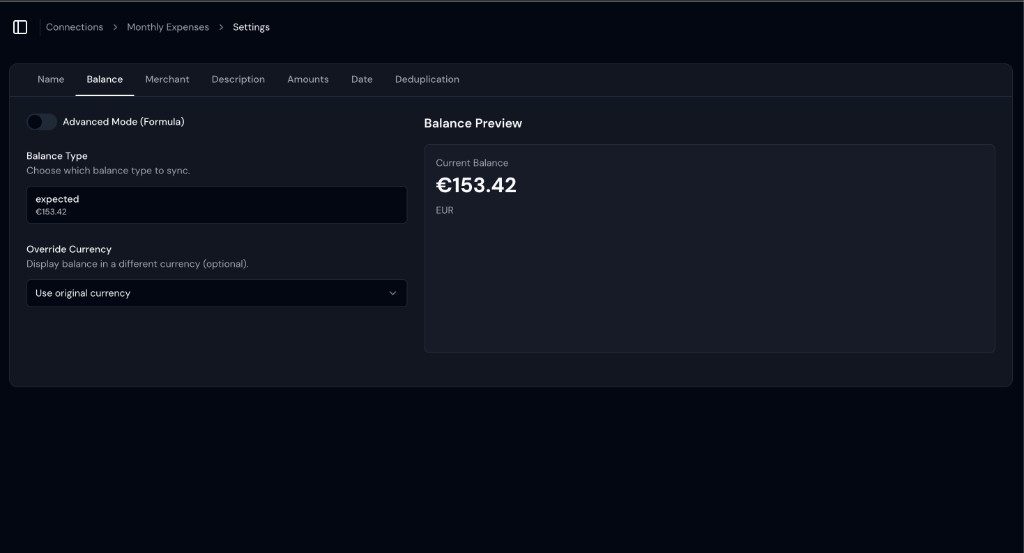
Balance tab — pick the type that matches your bank app.
4. Check transaction signs
Liquify treats negative amounts as spending and positive amounts as money in. On the Amounts tab, open the preview: if purchases show as positive, turn on Reverse Amounts. Leave it off when spending is already negative—common for checking accounts.
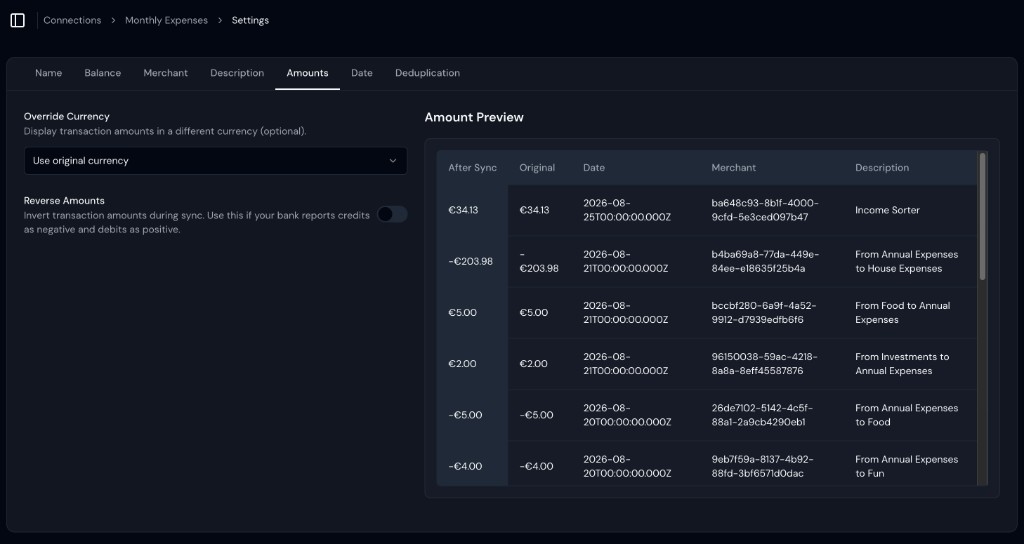
Amounts tab — turn on Reverse Amounts only if purchases show as positive.
5. Choose a transaction date
On the Date tab, compare booking and value dates and pick the one that best matches your bank app—usually Booking Date. Value Date is for settlement and can land a day earlier (for example 31 Aug in Liquify when your bank shows 1 Sep).
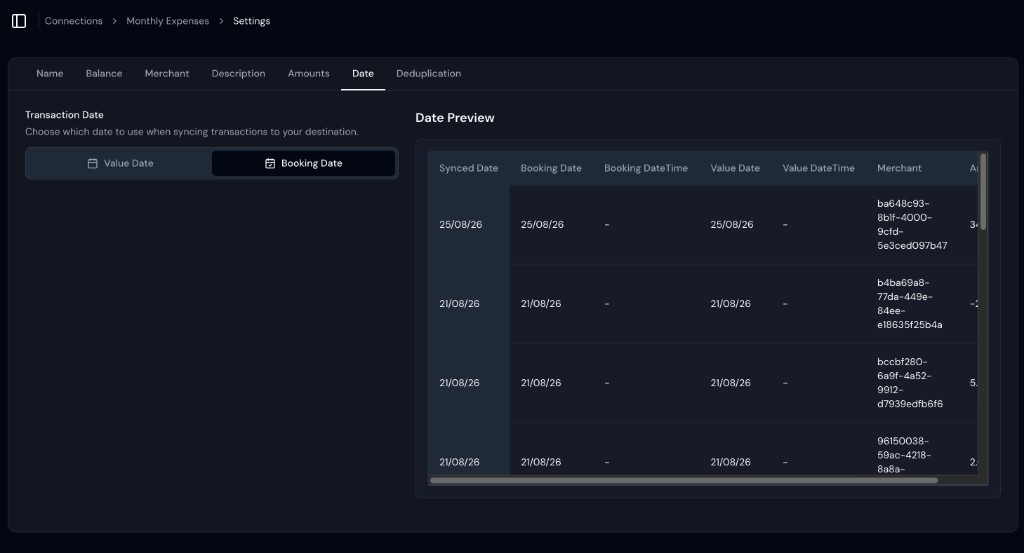
Date tab — choose Booking Date so charges match your bank statement.
6. Rename accounts so you can find them later
Some banks give every account the same name. In Lunch Flow, open Connections, check each account’s details, and rename it after the Liquify box you’ll link it to (for example Groceries or Rent). That makes Balance, Amounts, and Date easier to tune—and helps you find the same account when you link the box in Liquify.
7. Edit names and account type in Liquify
On Connect bank, open Edit bank. Set a Bank name and a Name for each account. If an account is a credit card but shows as checking, switch Account type to Credit Card—changing the type unlinks that account from boxes across all your budgets.
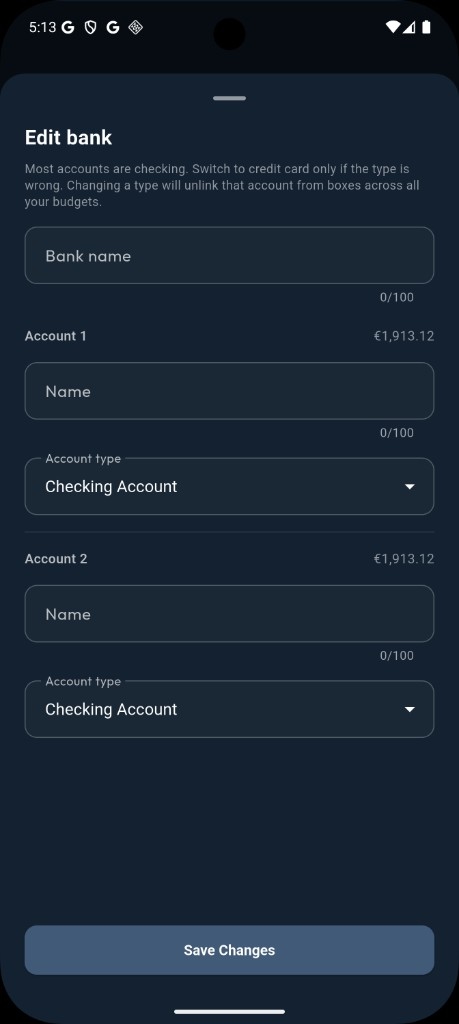
Edit bank — rename accounts and correct checking vs credit card.
You’re done when…
Liquify shows the bank on Connect bank / Accounts with balances and transaction dates that match your bank app.
After changing Balance, Amounts, or Date in Lunch Flow, pull to refresh in Liquify (or wait for the next automatic sync). If a connection shows Needs reconnect, reconnect from Liquify and authorise again in Lunch Flow.