Overview
Bank sync in Liquify is free on every plan. In New Zealand you can bring your own Akahu Personal App: you connect banks in My Akahu, copy two tokens into Liquify, and Liquify reads balances and transactions. Liquify never sees your bank password and does not maintain a Liquify-owned Akahu partner account—you have a direct relationship with Akahu.
For the EU / UK path see Enable Banking. For limits and how sync works, see Bank Sync.
Before you start
- A signed-in Liquify account
- A New Zealand bank supported by Akahu
- About 15 minutes for a one-time setup
- Up to 10 Akahu banks per person in Liquify
Akahu links
my.akahu.nz
Consumer portal where you connect each NZ bank.
Akahu developers — Personal Apps
Documentation for Personal Apps, tokens, and API limits.
Akahu privacy notice
How Akahu processes data when you connect a bank.
Token warning (read this)
Akahu gives you two different tokens from My Akahu → Developers:
- User Access Token — authorises access to the NZ accounts you connected in My Akahu
- App ID Token — identifies your Personal App (
app_token_…); sent asX-Akahu-Id
They look similar but are not interchangeable. If you swap them, connection fails. Treat both like passwords—do not share them in chat or email.
Demo Bank in Akahu is for engineering only (probes, fixtures, local mock). Connect your real NZ banks in My Akahu before pasting tokens into Liquify.
1. Create a Personal App
Sign in at my.akahu.nz, open Developers, and create a Personal App if you do not already have one.
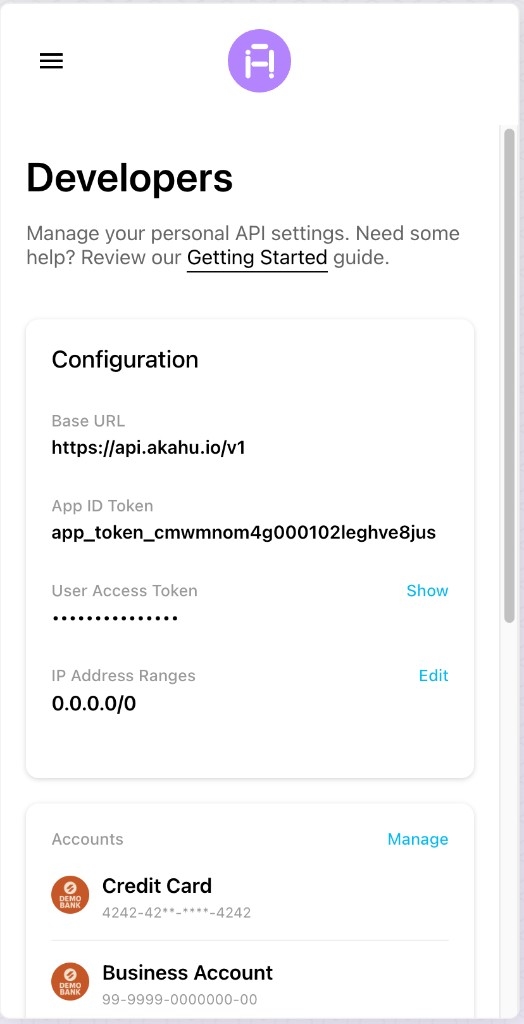
Developers — copy App ID Token and User Access Token (Show) separately. Connect real NZ banks—not Demo Bank—before pasting into Liquify.
2. Connect your NZ banks in My Akahu
From My Akahu, connect each real bank you want in Liquify. Complete each bank’s own login flow. Repeat until every account you need appears under connected accounts.
3. Paste both tokens in Liquify
In Liquify open Connect bank, choose Akahu (New Zealand), and paste the User Access Token and App ID Token in the matching fields.
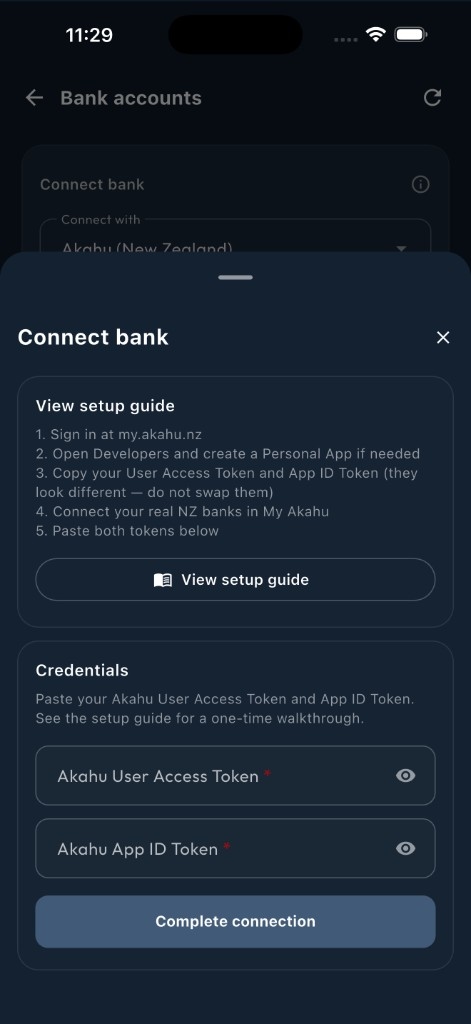
Akahu connect sheet — paste User Access Token and App ID Token.
Liquify adds every account on that Akahu connection. To add another NZ bank later, connect it in My Akahu first—Akahu may issue new tokens when access changes; paste fresh tokens if reconnect asks for them.
4. Check names and account type
On Connect bank, open Edit bank to rename the institution and each account, and to fix Account type (current account vs credit card) if needed.
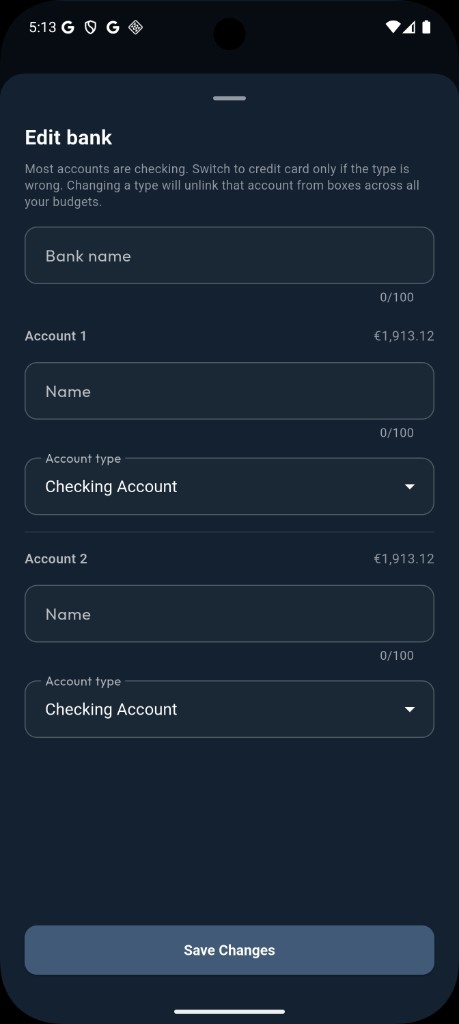
Edit bank — rename accounts and correct checking vs credit card.
How often it syncs
Like other providers, Akahu banks sync automatically about every 6 hours. Manual refresh is available about every 15 minutes. Each sync pulls up to the last 90 days of transactions.
Akahu updates your NZ bank data about once a day. Liquify’s every-6-hour sync reads whatever Akahu already has—it does not force an extra pull from your bank between those daily updates.
If something goes wrong
If Akahu revokes access or a bank needs you to sign in again, Liquify shows Needs reconnect. Renew tokens in My Akahu Developers if needed, then tap Reconnect in Liquify and paste both tokens again.
You’re done when…
Liquify shows your NZ banks on Connect bank / Accounts with balances that match your bank app.