
Overview
Anyone signed in to Liquify (Free, Pro, or Ultra) who wants to connect Brazilian banks with their own Pluggy keys. This is a developer-style setup—not Ultra-walled. Liquify never sees your bank login—you authorize the bank in Meu Pluggy and share only encrypted API keys plus an Item ID. For limits and how sync works, see Bank Sync.
Before you start
- A signed-in Liquify account (Free, Pro, or Ultra)
- A Brazilian bank that supports Open Finance
- About 15 minutes for a one-time setup (repeat the Demo OAuth once per bank)
- Meu Pluggy may show a trial — ignore it; personal use stays free forever for up to 5 bank connections
Pluggy links—don’t mix the portals up
meu.pluggy.ai
Consumer app where you connect each Brazilian bank through Open Finance.
dashboard.pluggy.ai
Developer portal where you create an app, enable Meu Pluggy, and copy Client ID, Client Secret, and Item ID.
Bank coverage
See which Brazilian banks Pluggy supports through Open Finance before you connect.
Meu Pluggy guide
Pluggy’s own walkthrough if something fails on their side while connecting or authorizing.
1. Connect your banks in Meu Pluggy
Sign up at meu.pluggy.ai. On the welcome screen, tap the main button to start connecting a bank.
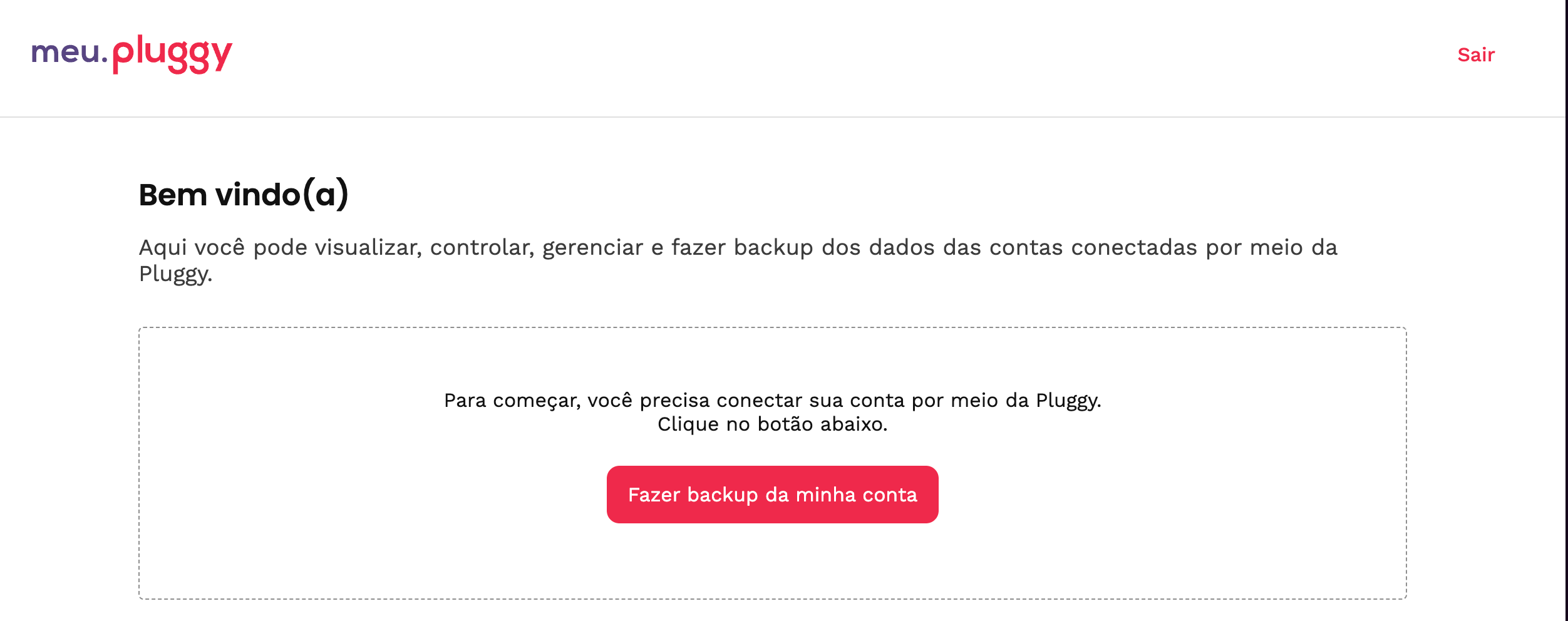
Meu Pluggy home — tap the main button to connect a bank.
Search for your bank, select it, then complete the bank’s own Open Finance flow (CPF, branch, password, or SMS—depending on the bank).
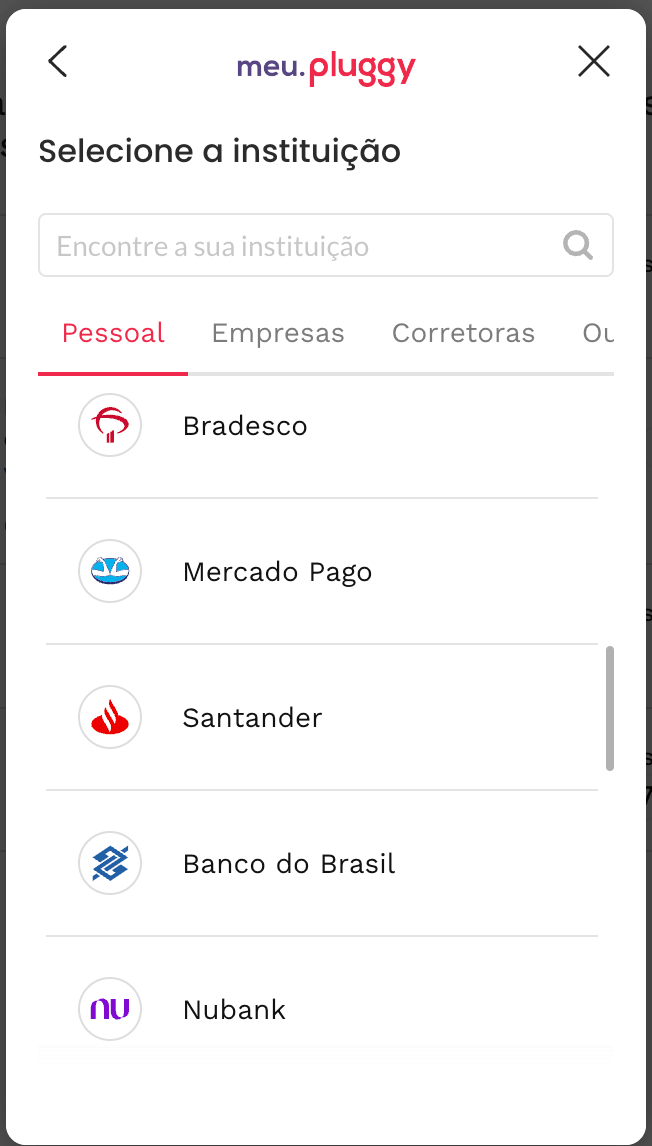
Pick your bank from the list.
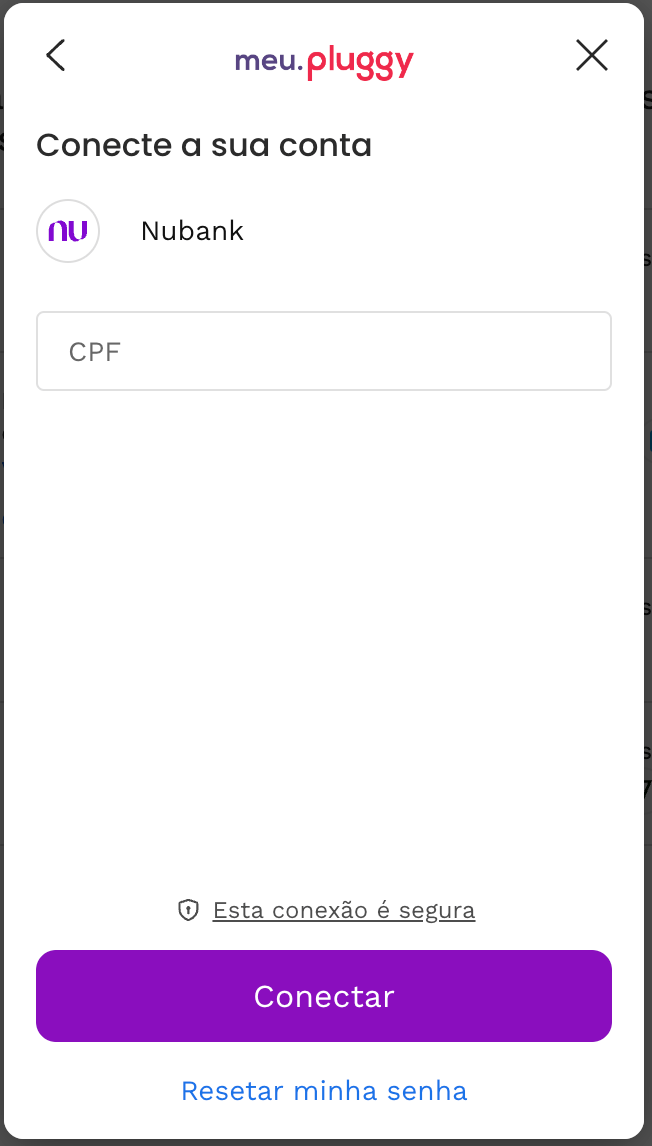
Enter your CPF and finish the bank login.
When it succeeds, the bank appears under connected accounts. Repeat for each Brazilian bank you want in Liquify (up to 5 per person).
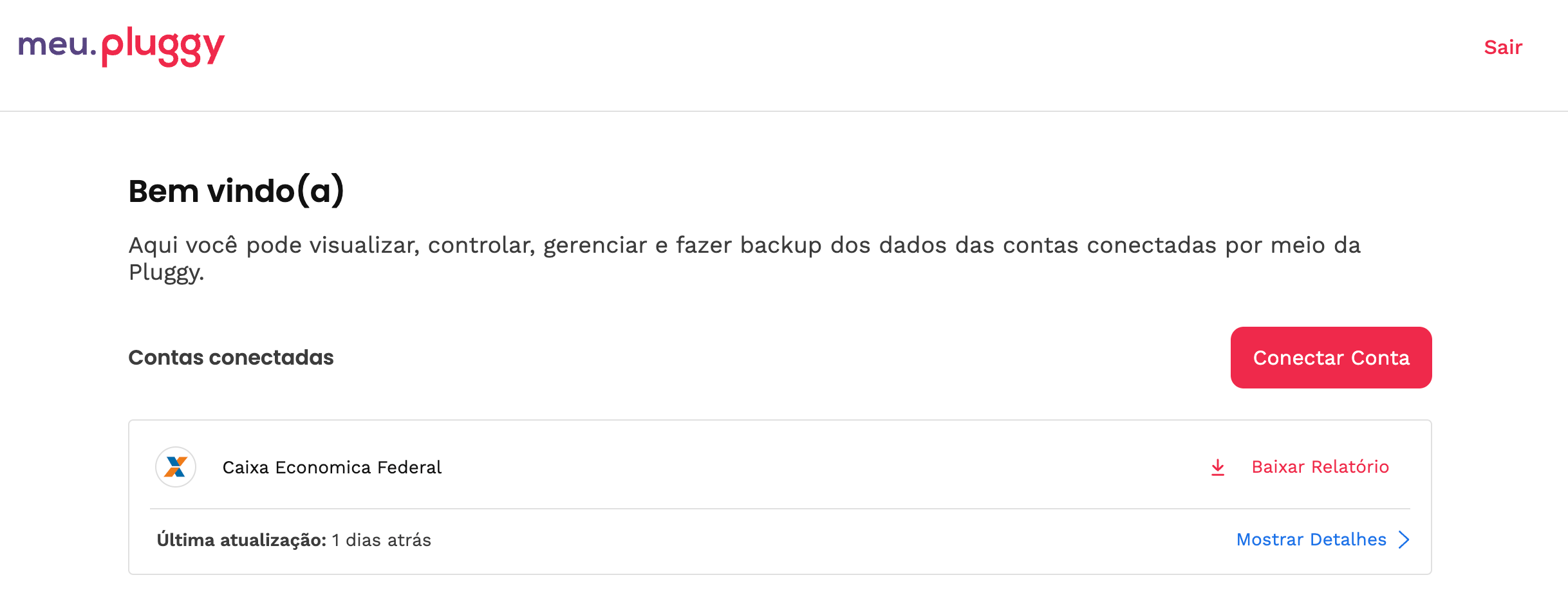
Connected banks show up here.
2. Create a Pluggy Developer account
Sign up at dashboard.pluggy.ai. Pluggy may start a short dashboard trial — ignore that for this setup. Meu Pluggy stays free for personal bank sync; Liquify does not require Ultra for this Pluggy (Brazil) path.
3. Enable the Meu Pluggy connector
In the Pluggy dashboard open Customization → Connector list. Meu Pluggy is easy to miss—enable it before you continue.
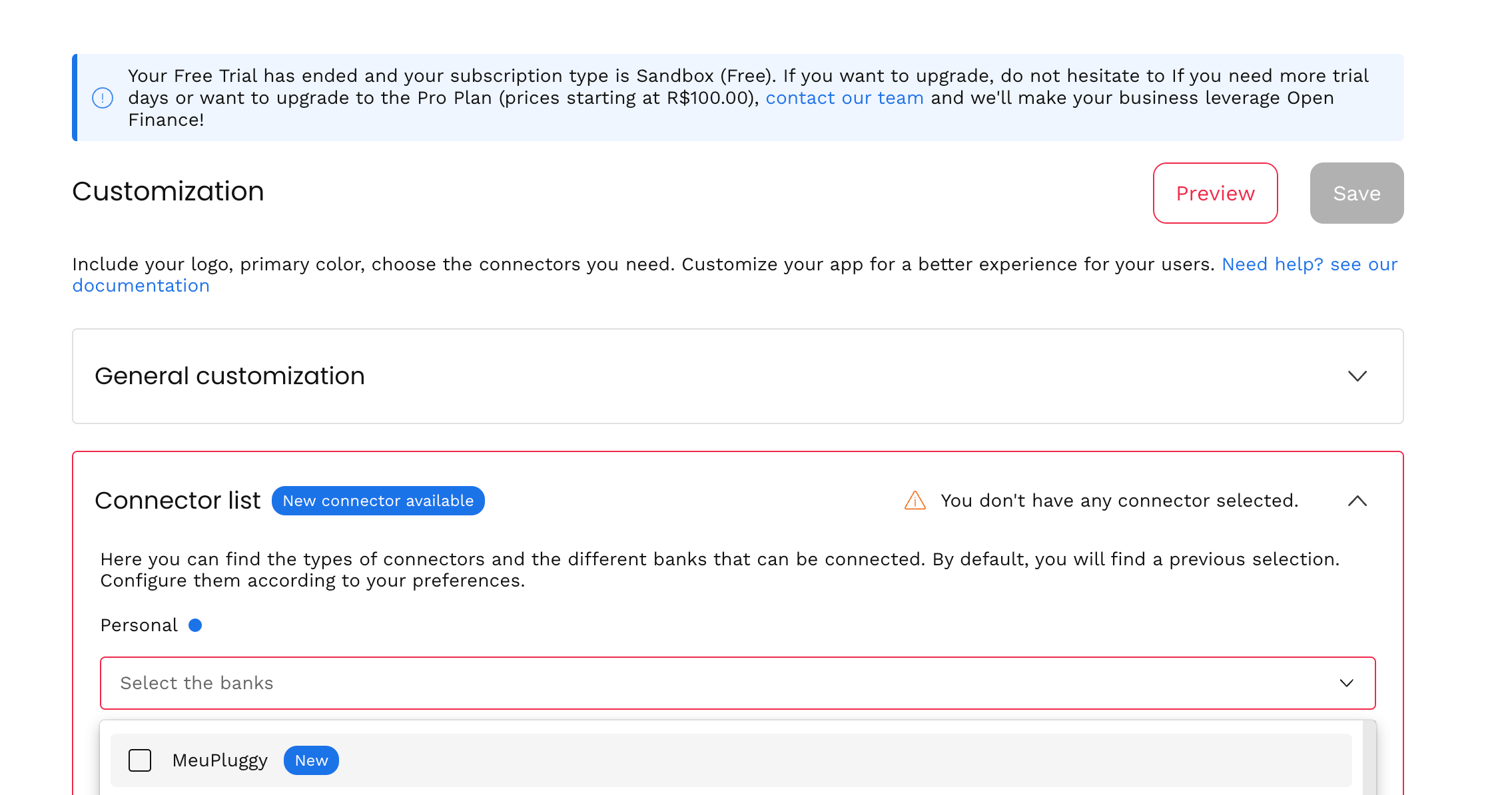
Customization → Connector list.
After you enable Meu Pluggy, it should appear in your connector list. Without this step, Demo OAuth later will not show Meu Pluggy.
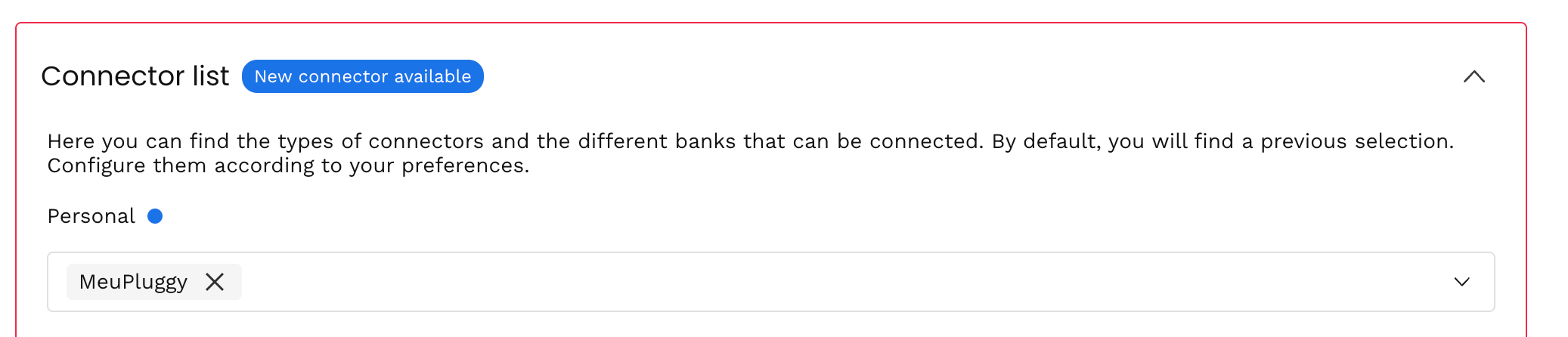
Meu Pluggy enabled in the connector list.
4. Create a Development Application and copy your keys
On your Application page, create a Development Application. You’ll get a Client ID and Client Secret to paste into Liquify.
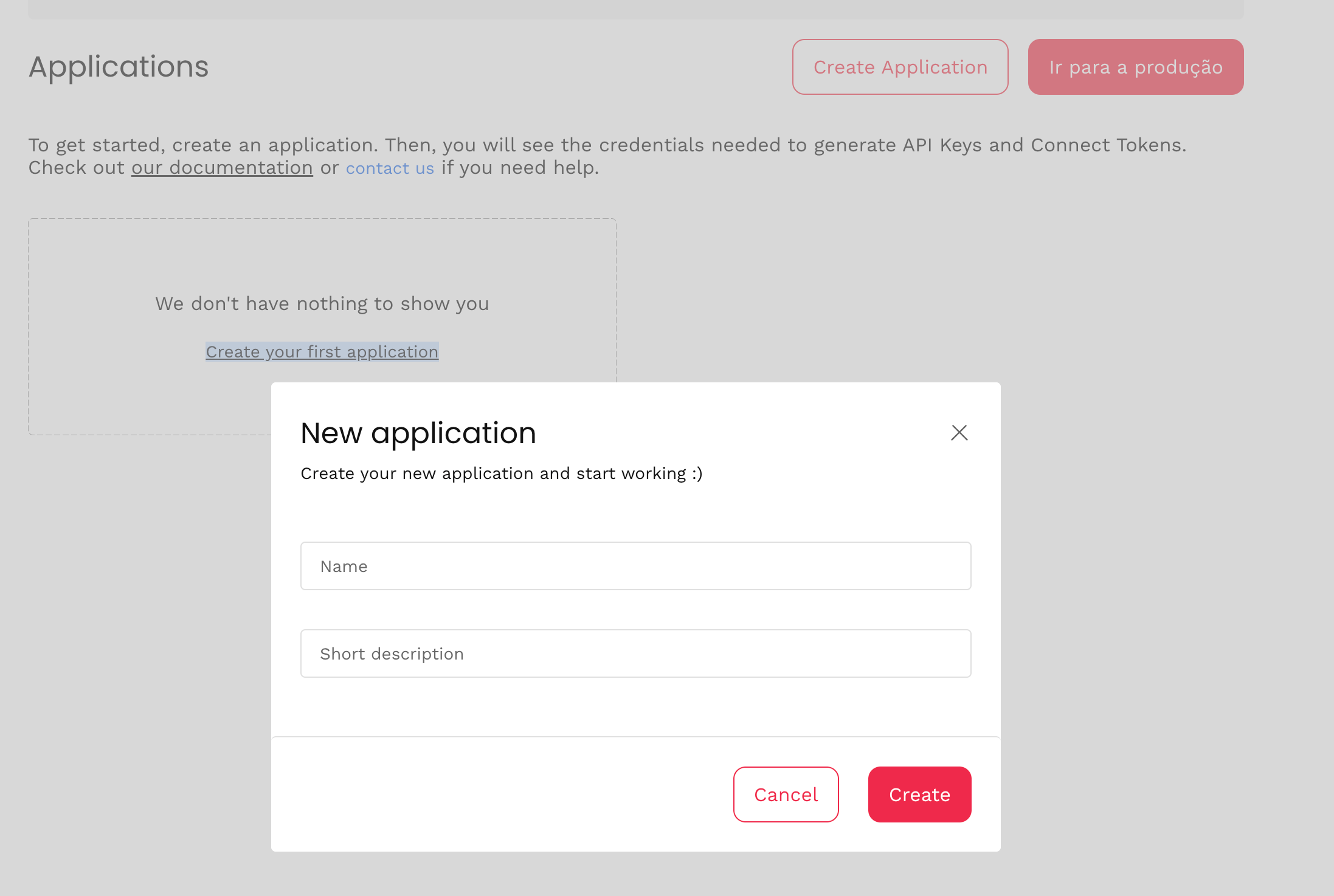
Create a Development Application.
Copy both values. Save the Client Secret immediately—Pluggy may only show it once.
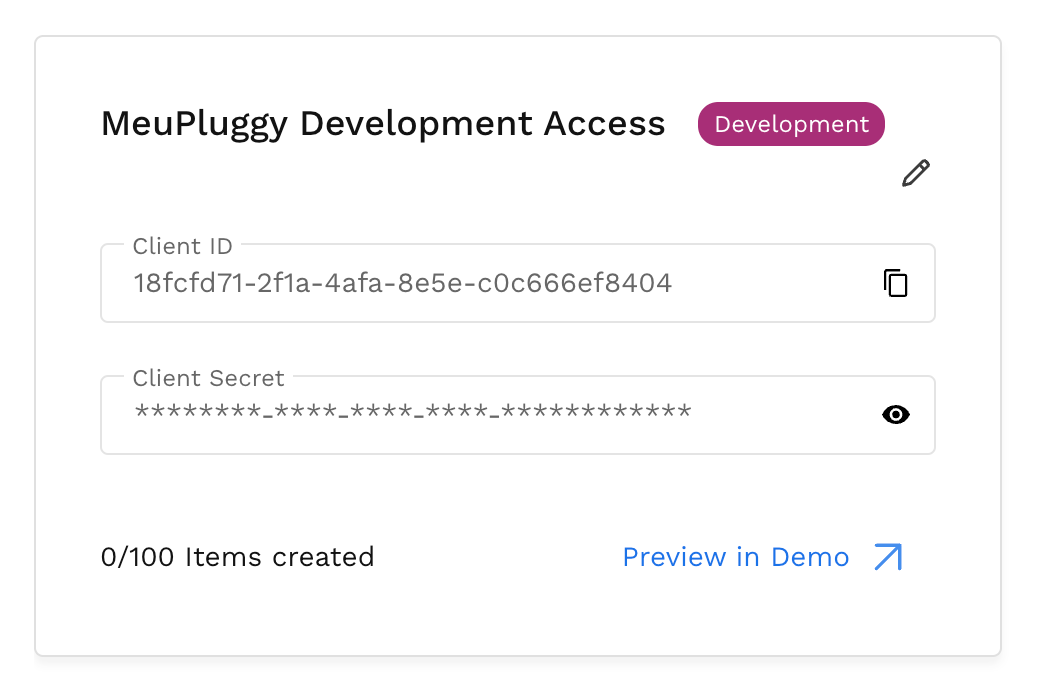
Copy Client ID and Client Secret.
5. Authorize Meu Pluggy in Pluggy Demo (once per bank)
Open Pluggy Demo from the dashboard, start a connection, and choose Meu Pluggy to begin OAuth.
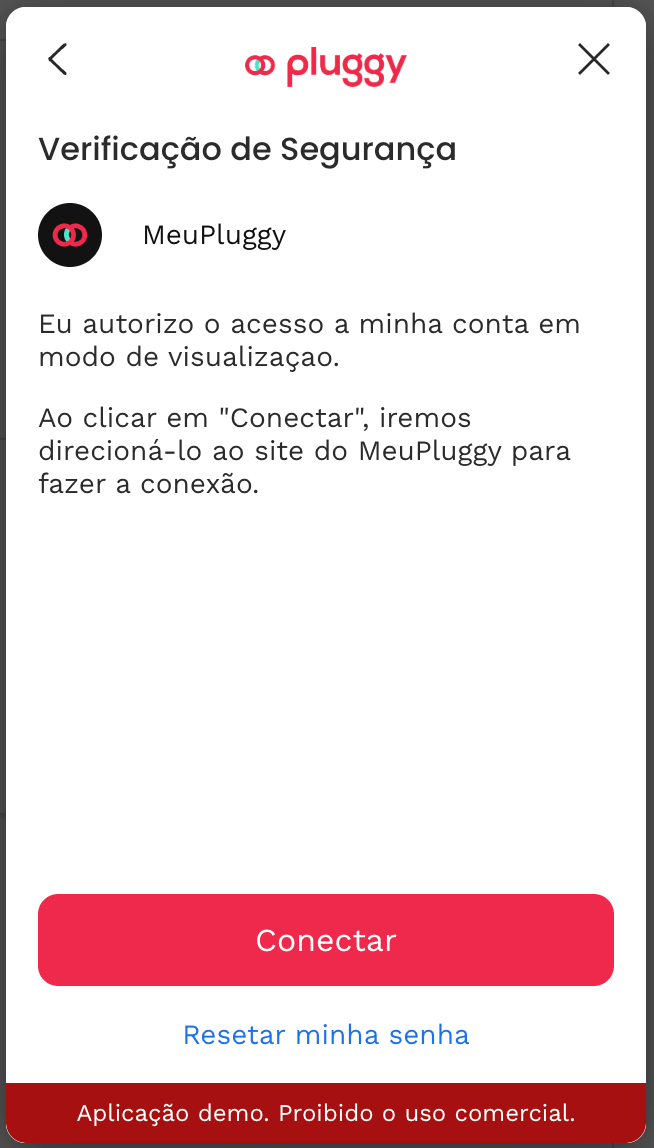
Start Meu Pluggy OAuth in Pluggy Demo.
Allow access and pick which Meu Pluggy bank to share. Do this once per bank, not once per account.
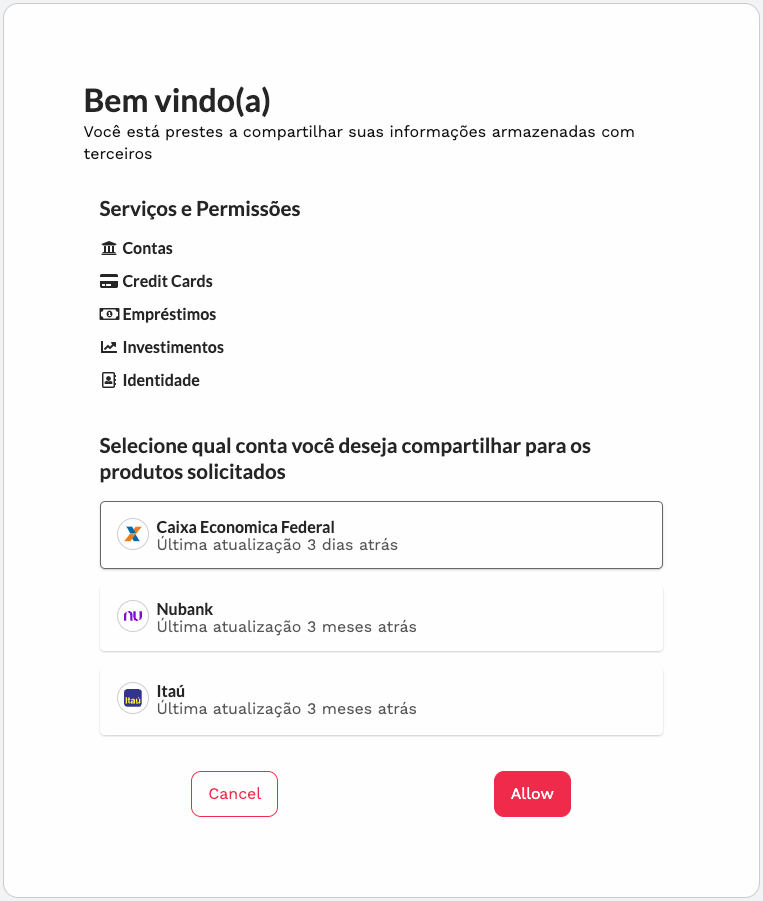
Choose the bank and allow access.
When authorization succeeds, the Demo shows the linked Meu Pluggy item. Each bank becomes its own Item.
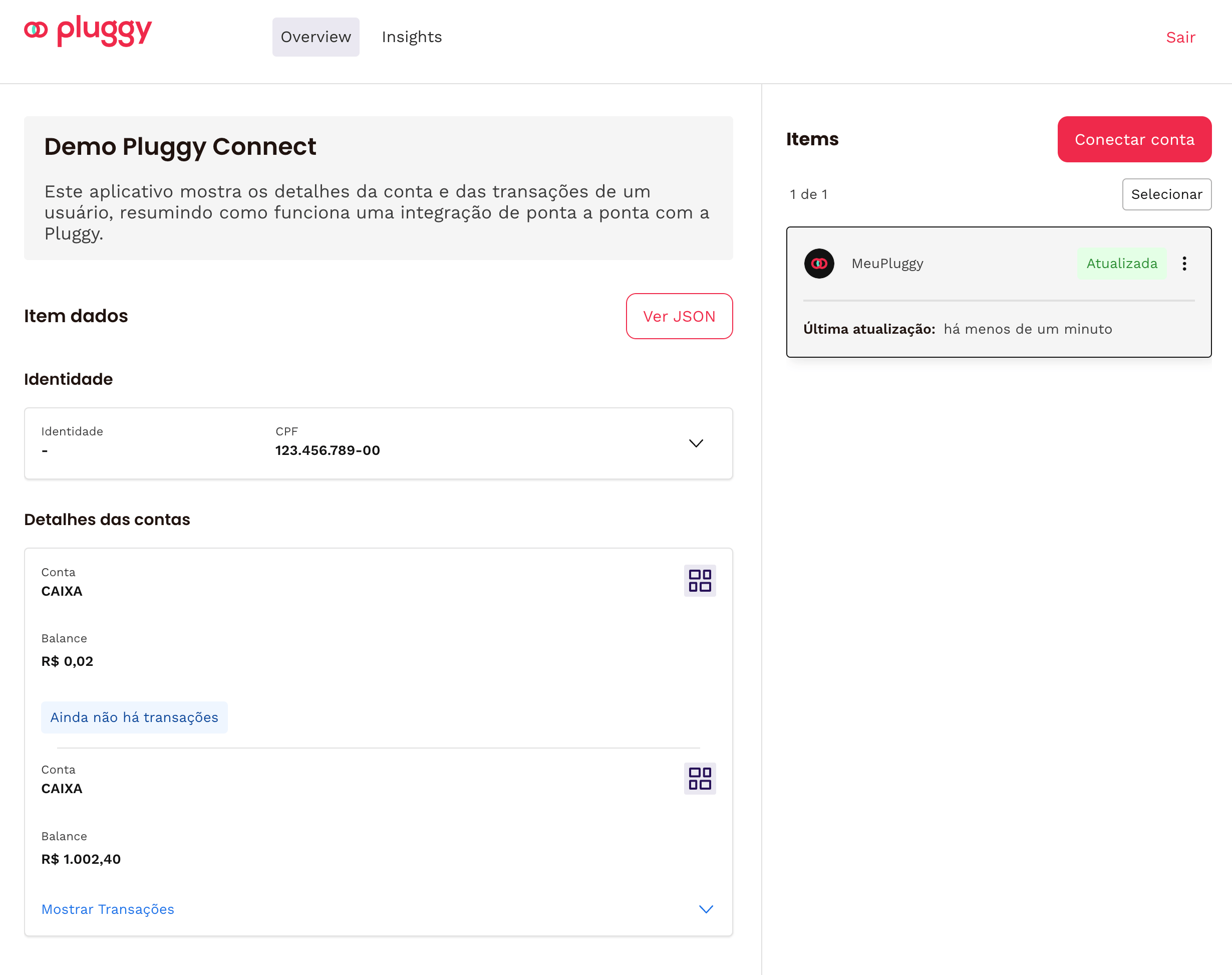
Authorized — the bank is ready to import.
6. Copy the Item ID and finish in Liquify
In the Pluggy dashboard Items page (or Demo item menu), copy the Item ID (UUID) for that bank.
In Liquify: Connect bank → Pluggy (Brazil) → paste Client ID, Client Secret, and Item ID. Liquify encrypts the keys on our servers and starts sync.
The same Client ID and Secret work for every bank; each bank needs its own Item ID. Liquify refreshes about every 6 hours and when you pull to refresh. Disconnecting in Liquify does not delete your Meu Pluggy or Pluggy connection.
7. Rename the bank and accounts in Liquify
On Connect bank, open Edit bank for the connection. Set a Bank name and a Name for each account so they are easy to find when you link boxes. Leave a field empty to keep the current label.
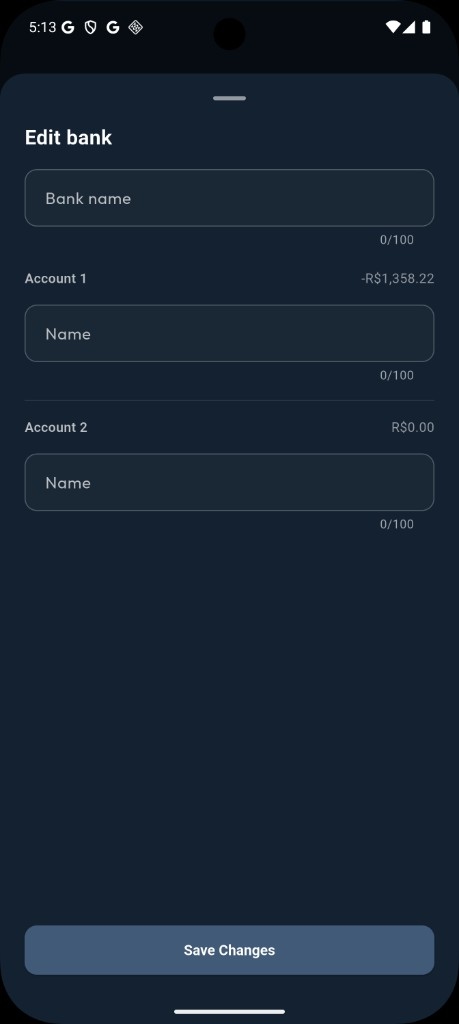
Edit bank — rename the bank and each account in Liquify.
You’re done when…
Liquify shows the bank on Connect bank / Accounts with balances. Link accounts to boxes from Edit Expense Box when you want Plan vs Accounts.
If the connection shows Needs reconnect, tap Reconnect in Liquify and enter your Client ID, Client Secret, and Item ID again—fields may already be filled from last time. That only updates Liquify; it does not open your bank. If the bank consent itself expired (often around every 90 days), renew it in Meu Pluggy / Pluggy Demo first, then use Reconnect in Liquify with the current Item ID.