Overview
Bank sync in Liquify is free on every plan. In the EU, EEA, and UK you can bring your own Enable Banking application: you register an app, download a private key, authorize each bank, and paste the OAuth code into Liquify. Liquify never sees your bank login and does not run a Liquify-managed Enable Banking partner account—you contract directly with Enable Banking.
For New Zealand see Akahu. For limits and data protection, see Bank Sync.
Before you start
- A signed-in Liquify account
- An EU / EEA / UK bank listed by Enable Banking for your country
- About 20 minutes for a one-time setup
- Up to 5 Enable Banking connections per person in Liquify
- A desktop browser for Enable Banking Control Panel steps
Enable Banking links
enablebanking.com
Register and open the Control Panel to create applications.
Enable Banking docs
API reference and ASPSP coverage.
Enable Banking privacy
How Enable Banking processes connection data.
Redirect URL (required — do not use ngrok)
In your Enable Banking application settings, set the redirect URL exactly to:
https://getliquify.com/enable-banking/callback
Use this canonical URL only—not a reverse proxy, ngrok tunnel, or localhost URL. Liquify hosts the callback page so you can copy the ?code= value back into the app after bank login.
1. Create an app and download PEM
In the Enable Banking Control Panel, create an application and download the private key (PEM). Note the Application ID. Choose Production (not Sandbox) so you can connect your real bank.
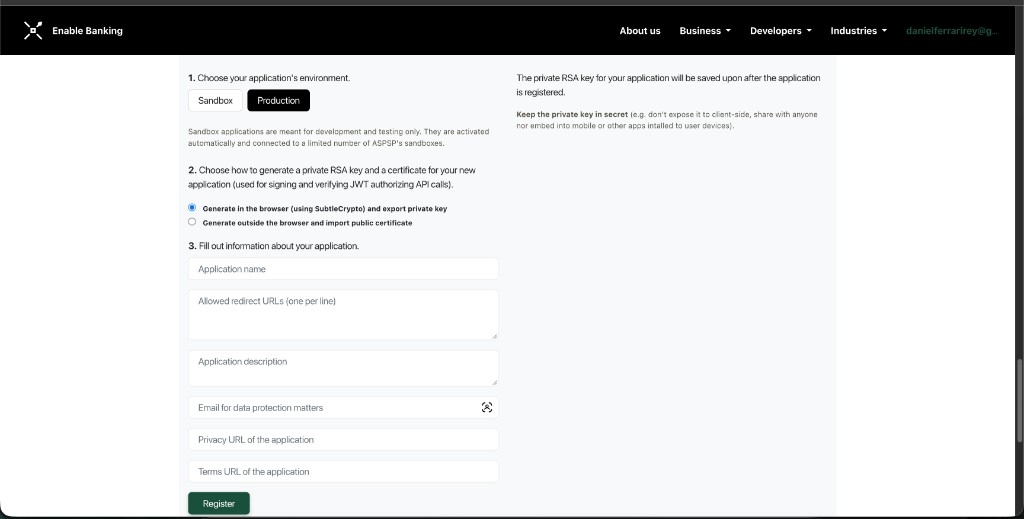
Control Panel — choose Production, create the app, set redirect URL to https://getliquify.com/enable-banking/callback, and download the PEM.
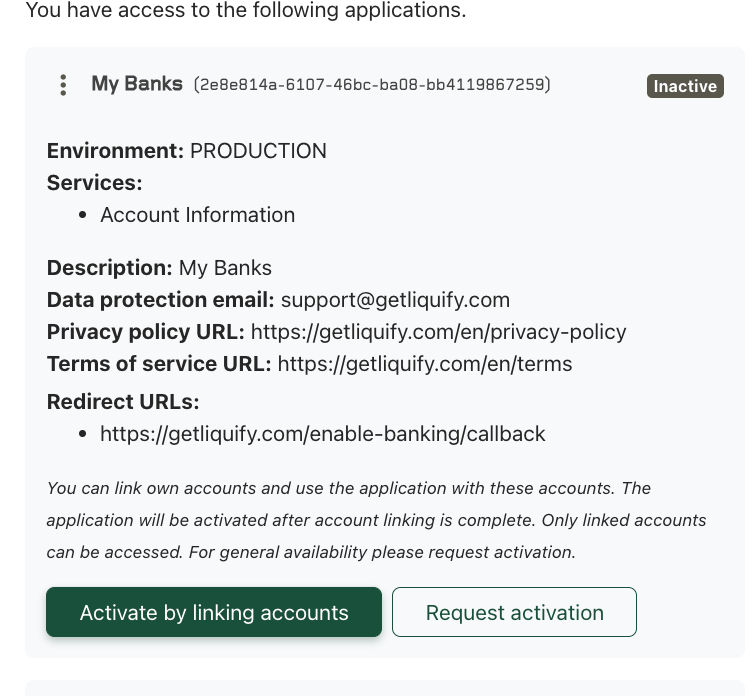
App details — confirm the redirect URL is exactly getliquify.com/enable-banking/callback, then note the Application ID.
2. Link your bank accounts
Still in the Control Panel, tap Activate by linking accounts. Then use Link: pick your country and bank, complete the bank login, and repeat for every account you want Liquify to read. Linked accounts show on the app.
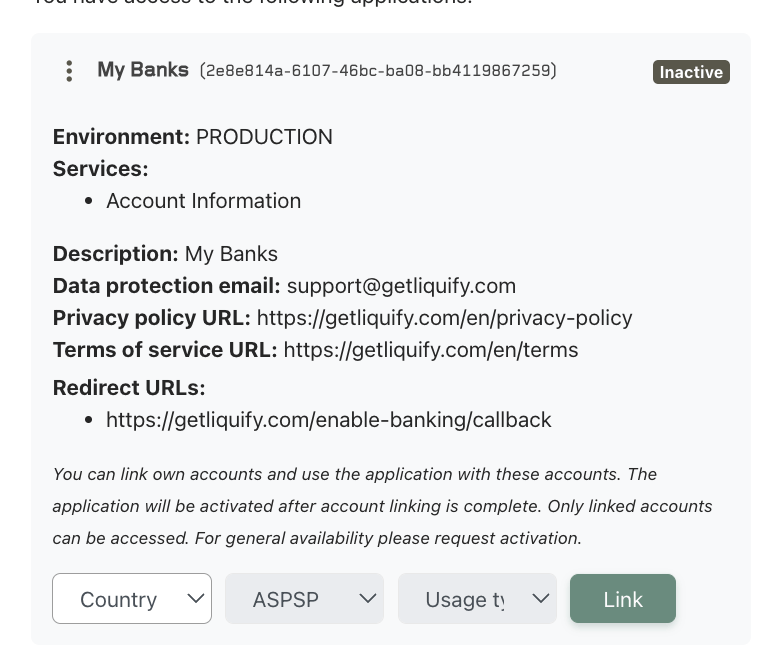
Control Panel — Activate by linking accounts, then Link (country / bank) for each account Liquify should read.
3. Add App ID, PEM, and bank country in Liquify
In Liquify open Connect bank, choose Enable Banking (EU / EEA / UK), enter your Application ID, upload the PEM file, pick the bank country, then continue.
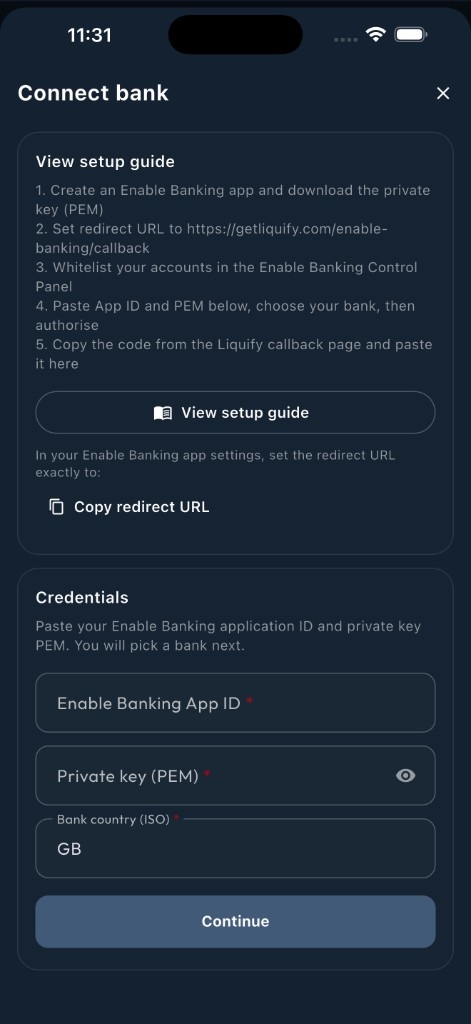
Enable Banking connect sheet — App ID, upload PEM, and bank country, then continue.
Pick your bank from the list, then tap Open bank login and complete the bank’s OAuth in the browser. If you have banks in more than one country, run Connect again and pick the other country (one OAuth session per bank).
4. Return with the authorization code
The bank redirects to the Liquify website callback (getliquify.com/enable-banking/callback) with ?code= — it does not open the app by itself.
- Liquify mobile app: on the callback page tap Open in Liquify (or let it open automatically). The code is filled in for you. If that fails, copy the code and paste it in Liquify.
- Liquify web: tap Copy on the callback page, then paste the code into Liquify.
Liquify creates one connection per bank session. Connect additional banks by repeating bank pick + OAuth (up to your Enable Banking cap).
5. Check names and account type
On Connect bank, open Edit bank to rename the institution and accounts, and correct Account type when needed.
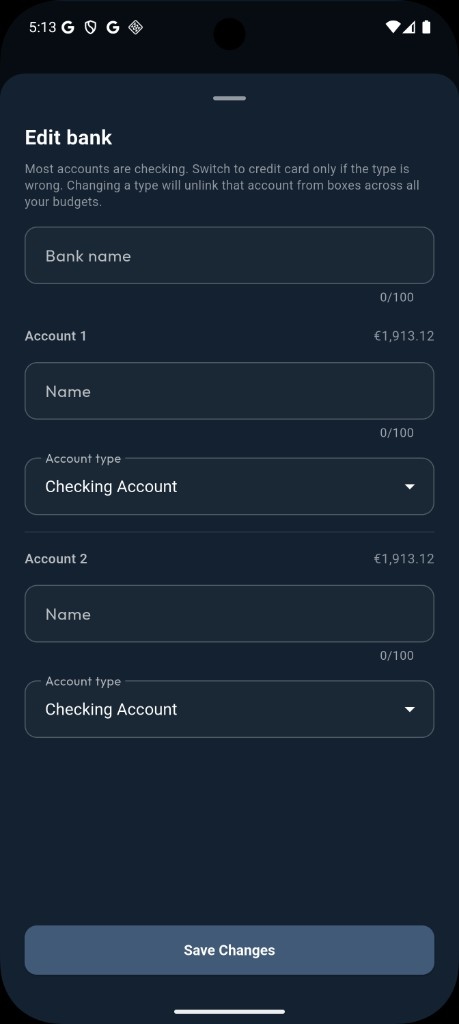
Edit bank — rename accounts and correct checking vs credit card.
How often it syncs
Enable Banking connections sync automatically about every 6 hours. Manual refresh is available about every 15 minutes. Stored transactions cover up to about the last 90 days.
Open Banking consent expires—Liquify shows Needs reconnect when the session ends. Re-authorize with the same app and paste a new code.
If something goes wrong
- Redirect mismatch — redirect URL must be exactly
https://getliquify.com/enable-banking/callback - Missing accounts — link the bank/accounts in Control Panel, then reconnect
- Expired consent — run OAuth again and paste a fresh code
You’re done when…
Liquify shows your bank on Connect bank / Accounts with balances that match your banking app.